How to Install a WordPress Theme from a .zip File
Upload a theme .zip in a couple of minutes, install it by FTP if the upload fails, and fix the errors that most often get in the way.

By Steve, Founder and editor, website developer
Updated
· Last reviewed · 3 min read
In short
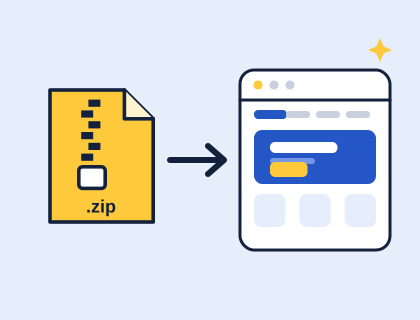
- To install a theme .zip, go to Appearance › Themes › Add Theme › Upload Theme, choose the file, then click Install Now and Activate.
- Upload the .zip as it is: don't unzip it first.
- If the upload fails, you can unzip the theme and upload its folder to /wp-content/themes/ by FTP or your host's File Manager.
- On WordPress.com, uploading a theme needs a paid plan.
How do you upload a theme .zip in WordPress?
- Download the theme. If your computer unzips it automatically (some Macs do), zip the theme folder up again or use the original download.
- Log in to WordPress and go to Appearance › Themes.
- Click Add Theme at the top of the screen, then Upload Theme.
- Click Choose File, select the .zip and click Install Now.
- When WordPress says the theme was installed, click Activate. Or click Live Preview to see it with your own content first.
That's it. With a block theme, go to Appearance › Editor to change your header, footer, home page, colours and fonts.
What should be inside a theme .zip?
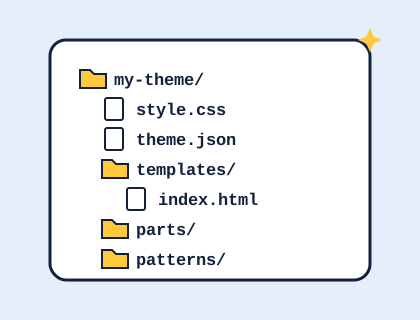
A theme .zip should contain one folder named after the theme, with a style.css file inside it. A block theme also needs templates/index.html. If WordPress says "The package could not be installed. The theme is missing the style.css stylesheet", you've probably uploaded the wrong file: a zip containing documentation and the real theme zip, or a plugin. Look inside the download for a second zip named after the theme. Read more in what's inside a block theme.
What does "The link you followed has expired" mean?
This message almost always means the file is bigger than your host allows for uploads. You can:
- Ask your host to raise the upload limit (the PHP settings
upload_max_filesizeandpost_max_size). Many cPanel hosts let you change these yourself in Select PHP Version › Options or MultiPHP INI Editor. - Install the theme by FTP or File Manager instead (below), which isn't affected by the upload limit.
Themes from our theme builder are usually well under 1 MB unless you add very large photos, so they upload on almost any host.
How do you install a theme by FTP or File Manager?
- Unzip the theme on your computer. You should have a folder named after the theme with
style.cssinside. - Connect with an FTP program such as FileZilla, or open File Manager in cPanel.
- Go to
/wp-content/themes/in your WordPress folder. - Upload the theme folder there. In cPanel's File Manager you can upload the .zip and use Extract instead.
- In WordPress, go to Appearance › Themes and activate it.
Will changing theme delete my content?
No. Your posts, pages, images and products are stored in the WordPress database, separately from the theme. Changing theme changes how they look. Some things are tied to a theme, though: menus and widget areas in classic themes, and any edits you made to templates in the Site Editor. Take a backup before switching theme on a live site.
Can I install a theme on WordPress.com?
Yes, on a paid plan. WordPress.com says theme uploads are available on its Personal, Premium, Business and Commerce plans. See WordPress.com vs WordPress.org.
Where to go next
Need a theme? Download a free block theme or design your own. Already installed? Learn how to update a theme without losing changes.
Questions and answers
How do I install a WordPress theme from a .zip file?
In WordPress, go to Appearance › Themes › Add Theme › Upload Theme, choose the .zip file, click Install Now and then Activate. Upload the file as it is; don't unzip it first. Step-by-step guide.
Why does WordPress say "The link you followed has expired" when I upload a theme?
Usually the file is bigger than your host's upload limit. Ask your host to raise the PHP upload_max_filesize and post_max_size settings, or upload the unzipped theme folder to /wp-content/themes/ by FTP or File Manager. More fixes.
Which version of WordPress do the themes need?
Themes from our builder need WordPress 6.6 or later and are tested with the latest release before we publish them (WordPress 7.1.4 as of November 2026). Each theme page shows its requirements.
Will changing my theme delete my posts and pages?
No. Your posts, pages, images and products are stored in the WordPress database, separately from your theme. Changing theme changes how they look. Take a backup first on a live site, because menus, widgets and Site Editor changes can be tied to a theme.
Sources and further reading
Didn't find your answer?
Ask us anything about WordPress or the theme builder. We answer the most useful questions here, so others can benefit too.